
If you have sat through an ERP demo, you have probably seen a long menu on the left of the screen: Masters, Sales, Purchase, Inventory, Accounts, CRM, Reports and more. This ERP modules list guide explains, in plain words, what each module actually does inside a retail shop, supermarket, pharmacy or restaurant, which jobs at your counter or in your stockroom it takes over, and which modules you need on day one versus later.
We have written a separate guide on what ERP software is. This post goes one level deeper and walks through the modules one by one, so you can read a vendor’s feature sheet and know what you are looking at.
Why ERP Is Split Into Modules
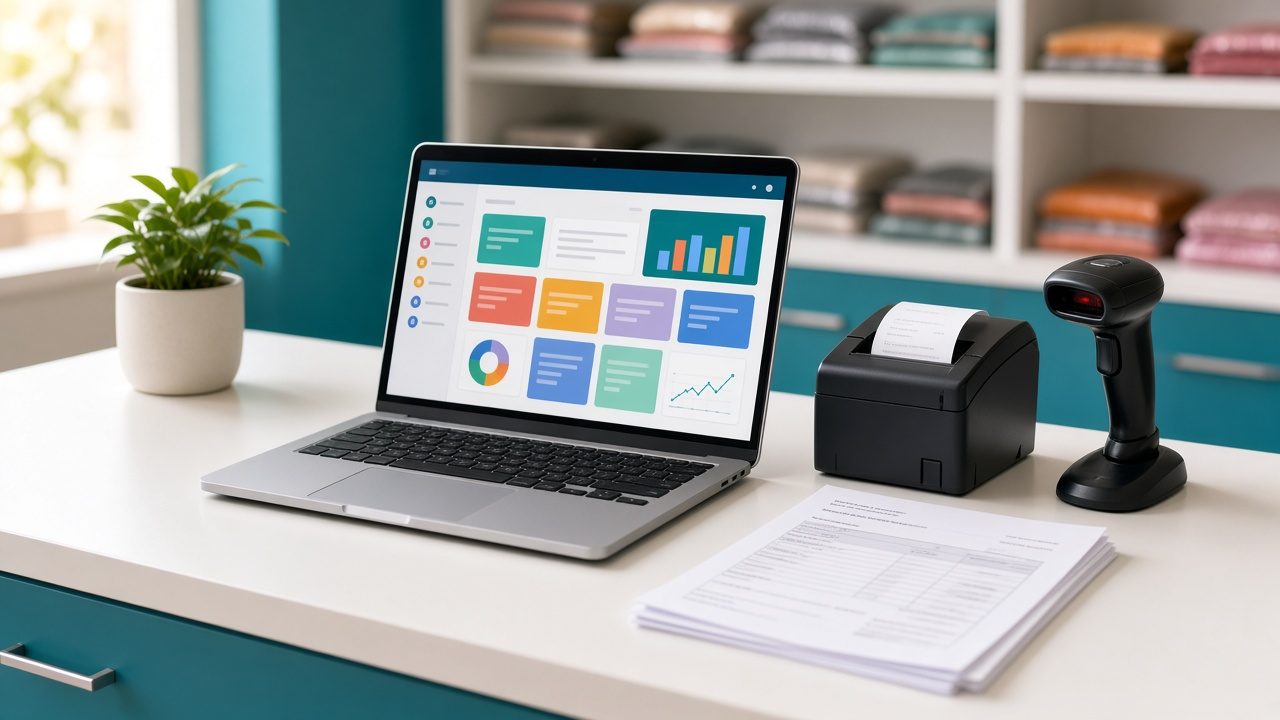
An ERP (enterprise resource planning) system is one database with many screens on top of it. The screens are grouped into modules by department: whoever bills uses the sales module, whoever receives goods uses purchase and inventory, and whoever closes the books uses accounts. Because all of them write to the same data, a bill made at the counter reduces stock, updates the customer’s account and shows up in your GST reports without anyone typing it twice.
For a business owner, modules matter for two practical reasons:
- You can start small. A single-counter shop may only need masters, sales, purchase, inventory and basic reports. A chain may add multi-branch, loyalty and approval controls later.
- You can compare vendors fairly. When two products both say “inventory”, the module-by-module checklist below helps you ask what that word really covers.
The Complete ERP Modules List for a Retail Business
Here is the list in the order a shop usually sets them up. Each section explains what the module holds, the everyday task it handles and a question worth asking in a demo.
1. Masters (the foundation)
Masters are the lists every other module reads from: items, item groups and brands, units of measure, HSN codes and GST rates, customers, suppliers, price lists, staff users and, for chains, branches. Nobody “uses” the masters module all day, but mistakes here travel everywhere. A wrong GST rate on an item master means every bill of that item is wrong.
Shop task: adding 40 new items that arrived from a distributor, with the right unit (piece, box, kg), selling price and tax rate.
Demo question: can I import items from Excel, and can one item be sold in more than one unit, such as a single soap and a box of 12?
2. Sales and Billing (POS)
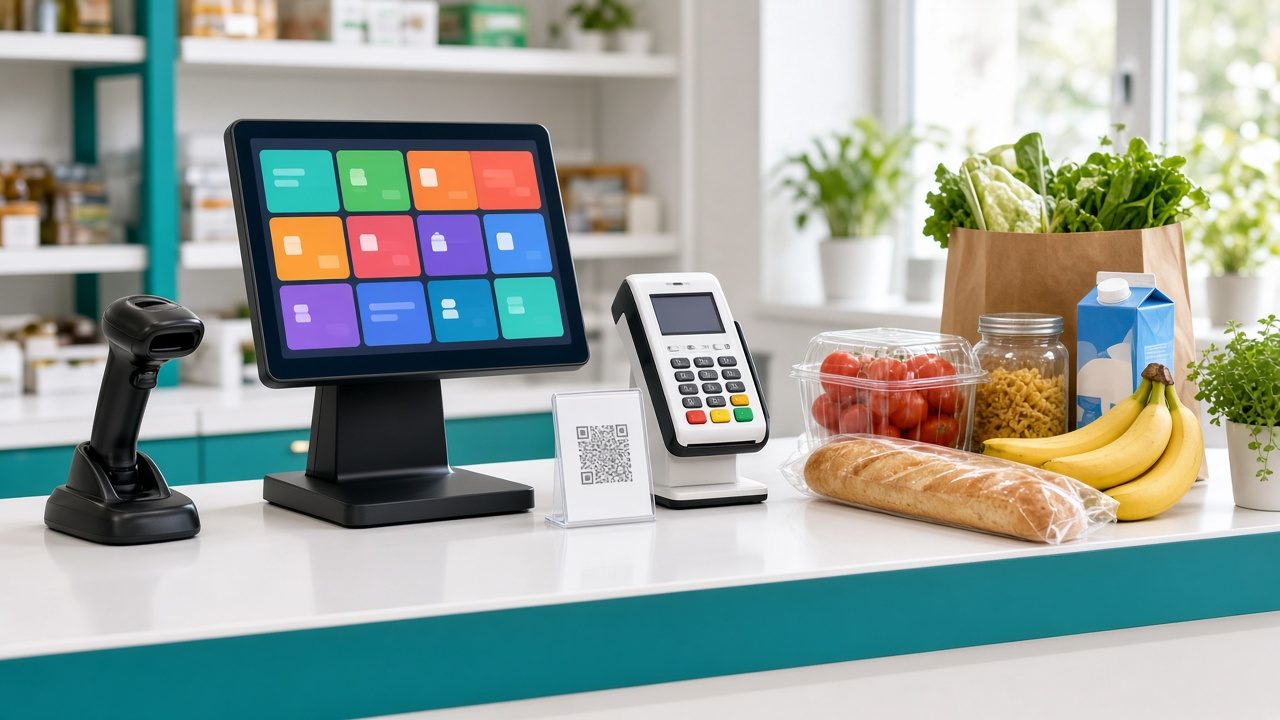
This is the module your counter staff will live in. It covers the bill screen, barcode scanning, discounts, returns, credit sales, payment modes (cash, card, UPI) and printing or sharing the invoice. In a restaurant, the same module usually includes table orders and KOTs (kitchen order tickets) sent to the kitchen.
Shop task: billing a 25-item grocery basket during the evening rush, with one item returned and the payment split between cash and UPI.
Demo question: how many keystrokes does a normal bill take, and what happens to the bill if the internet drops?
3. Purchase
The purchase module records what you buy: purchase orders to suppliers, goods received against those orders, the supplier’s bill with its GST, purchase returns and debit notes. It is also where landing cost is calculated, which later decides your real margin.
Shop task: a stockist delivers 18 cartons but bills for 20. The purchase entry should show the shortage so you pay only for what you received.
Demo question: can a purchase bill be created from the purchase order with a click, and are differences in quantity or rate highlighted?
4. Inventory and Stock Control
Inventory is the running count of every item in every location. Sales reduce it, purchases increase it, and adjustments record damage, expiry, free goods and stock-taking differences. A good inventory module also gives low-stock and reorder alerts, and, for medicines or food, tracks batch numbers and expiry dates.
Shop task: seeing on Monday morning which 15 fast-moving items will run out before the next delivery.
Demo question: show me the stock ledger of one item. Can I see every sale, purchase and adjustment that changed its quantity?
5. Accounts and Finance
The accounts module turns every transaction into ledger entries: sales, purchases, expenses, receipts, payments and bank entries. From these it builds the day book, cash book, trial balance, profit and loss and balance sheet. GST summaries for filing usually come from here too. If you want to understand where accounting software ends and ERP begins, read our comparison of ERP vs accounting software.
Shop task: knowing today’s cash in hand and which customers still owe money, without waiting for the accountant’s monthly visit.
Demo question: do sales and purchases post to accounts automatically, or does someone have to export and re-enter them?
6. Customer Management and Loyalty (CRM)
This module keeps the customer’s phone number, purchase history, outstanding balance and loyalty points. It lets you give points or member pricing at the counter and see who your regular buyers are.
Shop task: a regular customer forgets their loyalty card; the cashier finds them by mobile number and applies their points.
Demo question: can I see a customer’s dues and purchase history from the billing screen itself?
7. Multi-Branch and Stock Transfer
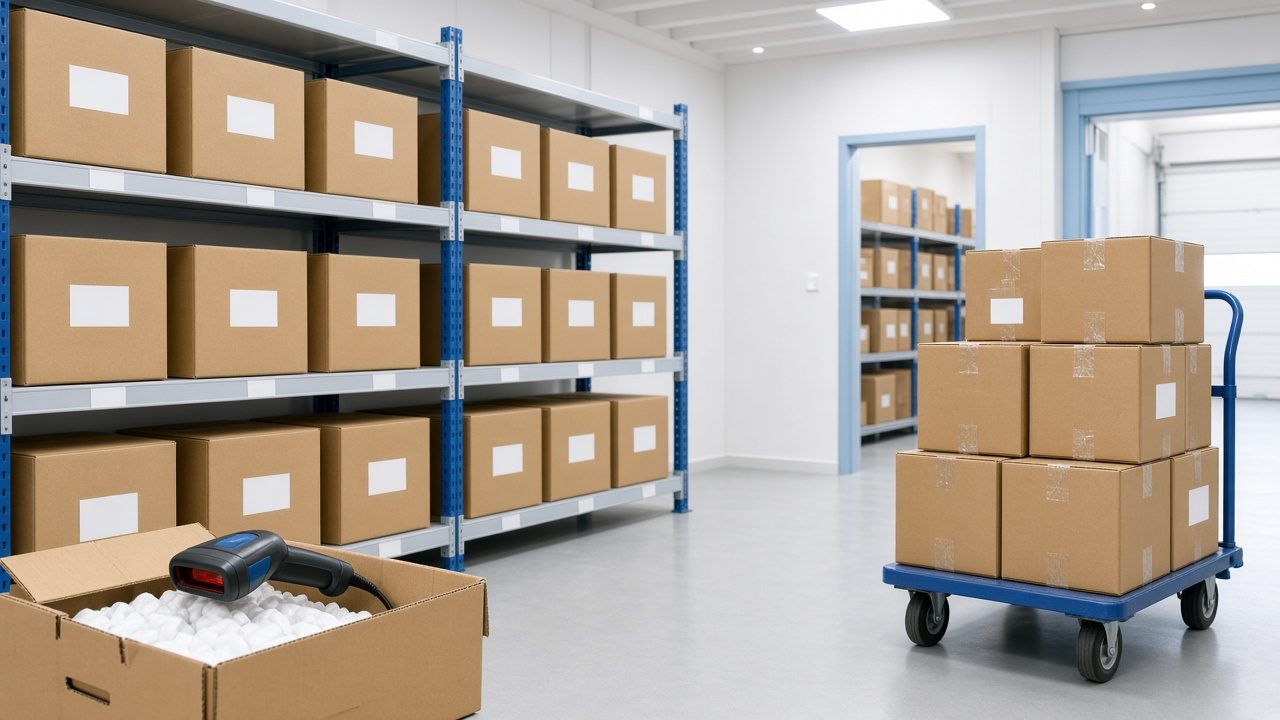
Once you have a second outlet or a central godown, you need a module that keeps branch-wise stock and sales separate but still lets the owner see the combined picture. It also records stock transfers between branches, so goods sent from the godown are not counted twice or lost in between.
Shop task: moving 30 cases of a fast seller from the Ernakulam godown to a Kakkanad outlet and seeing both stock figures update.
8. Users, Roles and Controls
Often hidden under “Settings”, this is the module that decides who can give discounts, delete bills, change prices or see profit. In a shop with several staff members it matters as much as billing itself, because most stock leakage starts with too many people having too much access.
Demo question: can I stop a cashier from editing a saved bill, and is there a log of who changed what?
9. HR and Payroll (optional for most shops)
Larger ERPs include attendance, salary, advances and statutory deductions. Many small and mid-size shops keep payroll with their accountant or a separate tool and only need staff records and salesman-wise sales inside the ERP. Treat this as a “check if needed” module rather than a must-have.
10. Reports and Dashboard
Every module produces data; the reports module is where you read it. Useful retail reports include daily sales by payment mode, item-wise and category-wise profit, slow-moving and dead stock, purchase versus sales, customer dues ageing and GST summaries. A dashboard puts the few numbers you check every day on one screen.
Demo question: can I filter reports by date, branch, category and staff, and export them to Excel?
11. Industry-Specific Modules
On top of the common modules, vertical ERPs add features for one type of business. Examples include KOT, table management, split bills and QR ordering for restaurants; batch and expiry tracking for pharmacies; size and colour handling for textile and footwear shops; and rental or appointment handling for service businesses. When you compare products, check that the industry module is built in rather than promised as a future customisation.
ERP Modules Mapped to Daily Shop Work
If you want a quick printable reference (many people search for an “ERP modules list PDF”), this table summarises the list above. Save the page as PDF from your browser if you want to take it to a demo.
| Module | What it handles | Who uses it | Needed on day one? |
|---|---|---|---|
| Masters | Items, units, GST rates, customers, suppliers, price lists | Owner or manager | Yes |
| Sales / POS | Bills, returns, payment modes, KOT for restaurants | Cashiers, captains | Yes |
| Purchase | Purchase orders, goods receipt, supplier bills, returns | Purchase staff, owner | Yes |
| Inventory | Stock levels, adjustments, reorder alerts, batch and expiry | Store keeper | Yes |
| Accounts | Ledgers, cash and bank, P&L, GST summaries | Accountant, owner | Yes, at least basic |
| CRM and loyalty | Customer history, dues, points, member pricing | Cashiers, owner | Helpful early |
| Multi-branch | Branch stock, transfers, combined reports | Owner, branch managers | When you add an outlet or godown |
| Users and roles | Permissions, approvals, activity log | Owner | Yes, if you have staff |
| HR and payroll | Attendance, salary, advances | Owner, accountant | Optional |
| Reports | Sales, profit, stock, dues, GST | Owner | Yes |
Which Modules Should You Start With?
Trying to switch on every module in the first week is the most common reason ERP projects stall in small businesses. A calmer sequence works better:
- Week 1: masters and billing. Clean up your item list, GST rates and units, then start billing. Get counter staff comfortable before adding anything else.
- Week 2: purchase and opening stock. Enter opening stock carefully and record every supplier bill from now on. Without this, stock figures will never match the shelf.
- Weeks 3 to 4: accounts and reports. Check that daily sales, cash and bank match, and start looking at item-wise profit and dues.
- Month 2 onwards: loyalty, branches, roles. Add customer programmes, branch transfers and tighter permissions once the basics run smoothly.
Our guide on how to choose retail ERP software covers the wider selection process, and the retail software demo checklist gives you questions to ask on the call.

Common Mistakes When Reading an ERP Modules List
- Counting modules instead of checking depth. Two products may both list “inventory”, but only one may handle units of measure, batches or branch transfers properly.
- Ignoring how modules connect. If purchase does not post to accounts automatically, you have two systems with one login, not an ERP.
- Paying for modules you will not use. A single-outlet bakery rarely needs a full payroll or manufacturing module in year one.
- Skipping the controls module. Permissions feel boring in a demo but protect your margin every day.
- Forgetting the people. Each module has a user. Plan who will run purchase entry and stock adjustments before go-live, not after.
How Caddayn Biller Covers These Modules
Caddayn Biller brings the core retail modules together: GST and barcode billing, purchase, inventory with low-stock and reorder alerts, units of measure and price lists, customer management and loyalty, UPI, card and cash payments, and multi-branch control. It runs as a Windows app and a web app. For specific industries there are vertical ERPs for supermarkets, textiles, hardware, restaurants (with KOT, tables, split bills and QR ordering), pharmacies (with batch and expiry), salons, rentals, hospitals, clinics, manufacturing and e-commerce. You can see the full range on the Caddayn more info page or read about retail ERP software in India.
If you would like to see how the modules connect on your own items and bills, download Caddayn Biller and try a normal day’s billing, purchase and stock check.
Frequently Asked Questions
What are the main modules of ERP?
For a retail or trading business the main ERP modules are masters, sales and billing (POS), purchase, inventory, accounts, customer management, multi-branch, users and roles, and reports. Manufacturing, HR and payroll, and industry-specific modules are added depending on the business.
Which ERP module is the most important for a shop?
Sales and billing is used the most, but inventory and masters decide whether your numbers can be trusted. If item masters and stock entries are wrong, every report built on them will be wrong too.
Do I need every ERP module from the start?
No. Most shops start with masters, billing, purchase, inventory and basic accounts, then add loyalty, branches and tighter controls once the team is comfortable.
Is there an ERP modules list PDF I can use?
You can use the table in this article as your checklist. Use your browser’s print option and choose “Save as PDF” to keep a copy for vendor demos.
What is the difference between an ERP module and separate software?
ERP modules share one database, so a bill updates stock, accounts and customer records at once. Separate tools for billing, stock and accounts usually need exports or manual re-entry to stay in sync.