
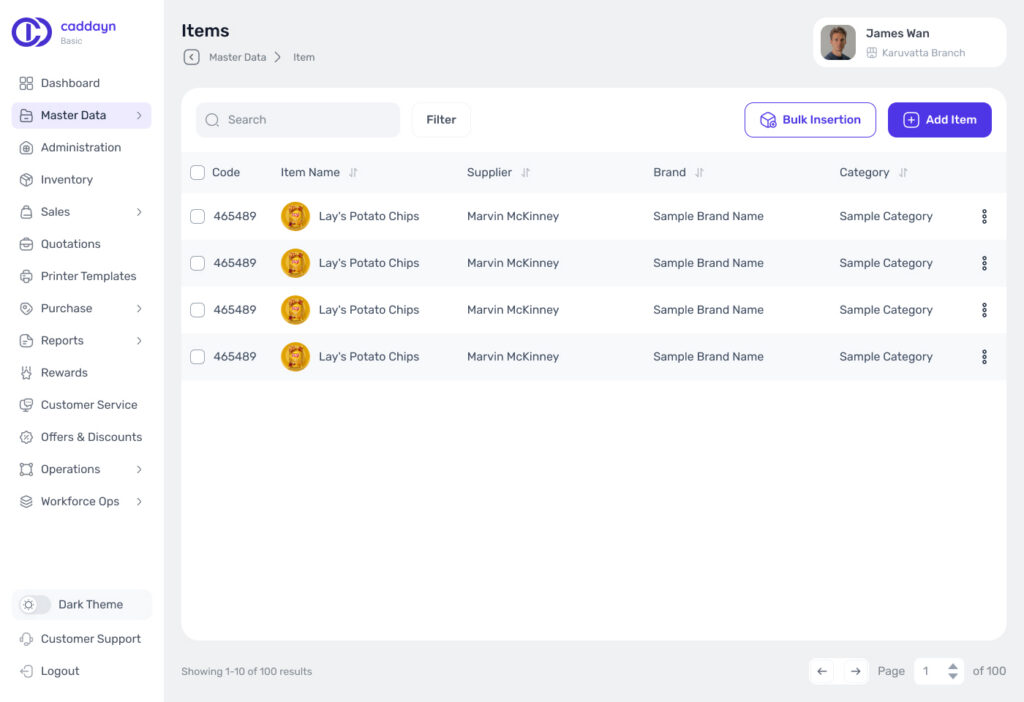
The Items Submodule is the central product management interface within Caddayn Biller.
It enables:
- Viewing all inventory items in a structured list
- Sorting and filtering based on Category, Brand, etc.
- Adding new product records
- Editing existing item records
- Bulk importing items via CSV upload
- Managing pricing and tax-linked configurations
All products used in Sales and Purchase transactions must first be created here. Caddayn Biller also allows you to create new items directly while making a purchase entry, without leaving the purchase screen in one go.
1.1.1⠀Add New Item
#
Purpose #
To create a new product record that can be used in billing, inventory tracking, and reporting.
Step-by-Step Procedure
#
- Open the Main Menu.
- Select Master Data.
- Click on the Items submodule.
- Click the Add Item button (Top-right corner).
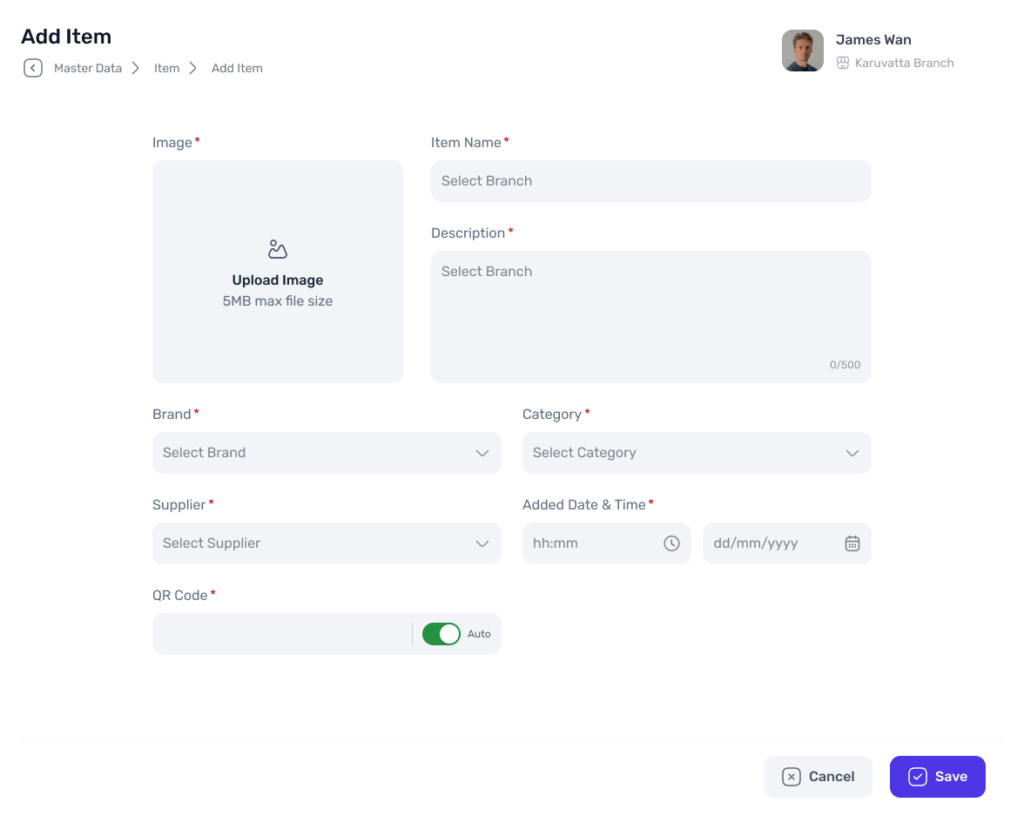
- A new item form window will open.
- Enter all required product details including:
- Item Name
- Category
- Brand
- Pricing Information
- Tax details
- Other applicable attributes
- Click Save Changes.
- The newly created item will now appear in the Items list.
Similarly, to edit the details of a product, click on it and select the edit option and enter the details as mentioned above.
1.1.2⠀Bulk Item Upload #
Purpose #
To efficiently insert large numbers of product records without manual entry.
Functional Description
#
The Items submodule supports direct CSV file upload for bulk product creation.
This feature:
- Reduces manual entry time
- Prevents repetitive data entry
- Enables quick onboarding of large inventories
Uploaded records are validated before insertion into the system.
Steps for Bulk upload #
- Go to Master Data → Items
- Click Bulk Insertion
- In the popup:
- Click Download Template
- Fill item data in the CSV file
- Upload the completed file
- Click Insert
All valid items will be added to the system.
1.1.3⠀System Dependencies #
Items are directly linked to:
- Sales transactions
- Purchase entries
- Inventory stock tracking
- Profit & Loss reports
- Tax calculations
Deleting or modifying item records impacts all dependent modules.
1.1.4⠀ Production Notes #
- Item records should not be hard deleted once transactions exist.
- Editing price fields may affect future transactions but not historical ones.
- Bulk uploads must follow system-defined CSV format for successful validation.


