
If your shop counter runs on a desktop PC, the search for billing software for Windows 10 usually starts on a busy day: the old program has slowed down, the receipt printer stopped responding after an update, or you have opened a second counter and need both PCs to show the same stock. This guide explains what to check before you install any desktop billing software on a Windows 10 or Windows 11 computer, how to prepare the PC and printer, and how to install Caddayn Biller for Windows step by step.
What to look for in billing software for Windows 10
Most billing programs look similar in a demo. The differences show up at 7 pm on a festival evening, when the internet is slow, three customers are waiting and the cashier has to reprint a bill. Use the points below as a checklist when you compare options.
1. Will it keep billing when the internet drops?
Many shops in Kerala towns still see short broadband or mobile data cuts. Ask how the software behaves when the connection goes: can the cashier keep raising bills, and do those bills sync to the main records once the line is back? If you are unsure which model fits your counter, our comparison of offline POS vs cloud POS walks through the trade-offs. A hybrid setup, where the counter keeps working and the data is managed in the cloud, suits most retail and restaurant businesses.
2. GST billing that matches how you actually sell
The software should handle tax invoices with your GSTIN, HSN or SAC codes, CGST and SGST for sales inside Kerala, IGST for inter-state sales, and bills of supply if you are under the composition scheme. Check that tax rates are set at the item level, not typed by the cashier for each bill. Ask to see a sample GST report and confirm your accountant can use it for return filing.
3. Printer, scanner and cash drawer support
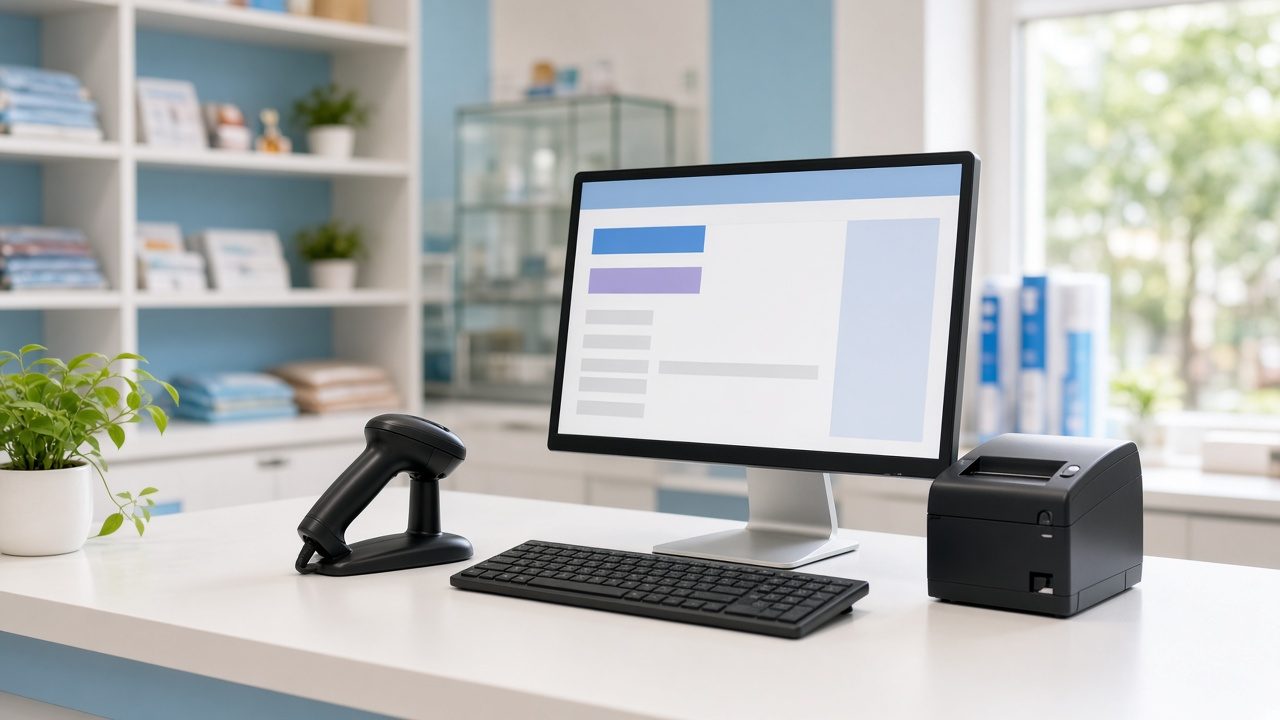
A Windows billing PC is only as fast as the devices around it. Confirm that the software prints cleanly on your paper width (commonly 2-inch or 3-inch thermal rolls, or A4 for B2B invoices), that it works with a USB barcode scanner without extra steps, and that it can open a cash drawer if you use one.
4. Backups and data safety
Ask where your bills, items and customer balances are stored, how often they are backed up, and how you would restore them if the PC fails. A software that keeps data only on one hard disk, with no copy anywhere else, is a risk for any shop.
5. Web access for the owner
Owners often want to check today’s sales or stock from home or from a second branch. Software that offers both a Windows app for the counter and a web app for the office gives you that flexibility without remote-desktop tricks.
6. Room to grow
Think one or two years ahead. Will you add a second counter, a godown or another branch? Check support for multiple users with separate permissions, multi-branch stock, units of measure (kg, box, piece) and price lists for retail and wholesale customers.
Windows 10 or Windows 11: what shop owners should know
Many shop PCs bought a few years ago still run Windows 10. Microsoft ended regular support for Windows 10 on 14 October 2025, which means those PCs no longer get free security updates by default. You can read the details on Microsoft’s Windows 10 end of support page.
What this means for your billing counter:
- Your billing PC handles money and customer data. A computer without security updates is easier to attack, especially if staff also use it for browsing or WhatsApp Web.
- Check whether the PC can move to Windows 11. Windows has a built-in check for this. If the hardware qualifies, plan the upgrade on a holiday or after closing time, not in the middle of a working day.
- If you must keep Windows 10 for now, keep the PC for billing only, use a good antivirus, avoid unknown pen drives and make sure your billing data is backed up somewhere other than that PC.
- Before you buy any software, ask the vendor which Windows versions they currently support and test the installer on your own counter PC.
How to prepare your Windows PC before installing
A little preparation saves hours of trouble later. Do these steps on the PC that will run the counter.
Step 1: Clean up and update the PC
Install pending Windows updates, restart, and remove programs nobody uses, such as old games, trial software or duplicate antivirus tools. A billing PC should start quickly and do one job well.
Step 2: Install the printer driver first
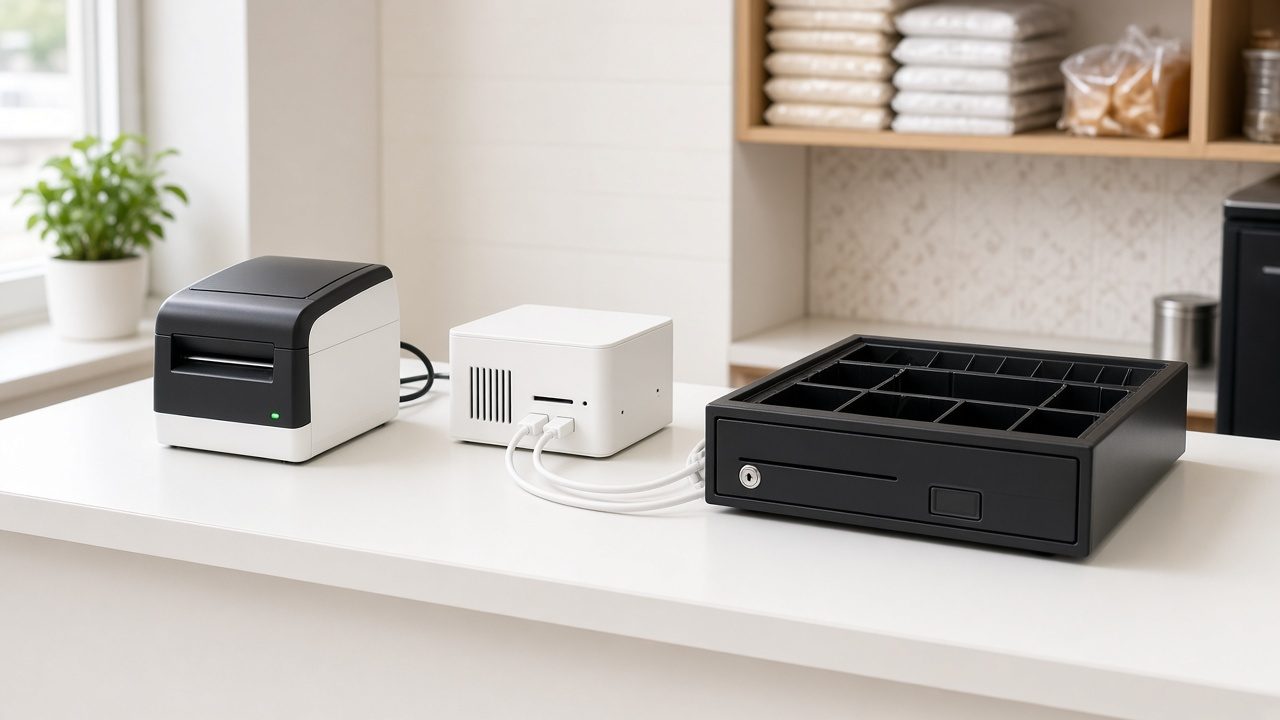
Connect the thermal printer, install the driver from the printer maker’s official website, and print a Windows test page. If the test page fails, fix that before blaming the billing software. Our guide to thermal printer billing software setup covers paper width, templates and peak-hour failure points in more detail.
Step 3: Test the barcode scanner
Open Notepad and scan any product barcode. If the number appears followed by a new line, the scanner is working in keyboard mode, which most billing software expects.
Step 4: Set up a separate Windows user for staff
Give cashiers their own Windows login without administrator rights. This stops accidental installs and settings changes, and it keeps the owner’s files separate.
Step 5: Decide on power and internet backup
A small UPS for the PC and printer prevents half-saved bills during power cuts. Keep a mobile hotspot as a backup connection so syncing can continue when broadband is down.
How to install Caddayn Biller on Windows
Caddayn Biller is GST-ready billing and inventory software with a Windows app for the counter and a web app for access from a browser. Installation follows the three steps shown on the Caddayn downloads page:
- Download: open the downloads page on the counter PC and choose Download for Windows to get the installer.
- Install: run the setup file and follow the on-screen setup wizard. If Windows asks for permission to make changes, sign in with the owner’s administrator account.
- Log in: sign in with your Caddayn account so your store data syncs.
After you log in, work through the basics before the first real bill:
- Enter your business name, address and GSTIN so they appear on every invoice.
- Add or import your items with HSN codes, tax rates, units and selling prices.
- Enter opening stock for each item so stock reports are correct from day one.
- Select your receipt printer and print a test bill on real paper.
- Create user logins for cashiers with only the permissions they need.
- Raise two or three test bills (cash, UPI and card), then check them in the sales report.
If you are moving from another program, do not rush the switch. Clean your item list and customer balances first. Our step-by-step guide on how to migrate billing software explains how to plan a short, clean cutover.
Keeping your billing data safe on a Windows PC
Hardware fails, staff make mistakes and pen drives carry viruses. A few habits protect years of sales history:
- Know where your data lives. With software that syncs to the cloud, your records are not tied to one hard disk. Still, ask your provider how backups work and how a restore is done.
- Keep the counter PC for billing. No movie downloads, games or random browsing on the machine that holds your sales.
- Use strong Windows and software passwords, and change them when a staff member leaves.
- Close the day properly. Check cash, UPI and card totals against the system every evening. A daily check catches problems while they are small.
- Write down a recovery plan. Note who to call, where the installer is and which account to sign in with if the PC has to be replaced.
Example: setting up two billing counters in a Kozhikode supermarket
Here is an illustrative example. A mid-size supermarket in Kozhikode has one older Windows 10 PC at the main counter and is adding a second counter for the weekend rush. The owner also wants to check sales from home.
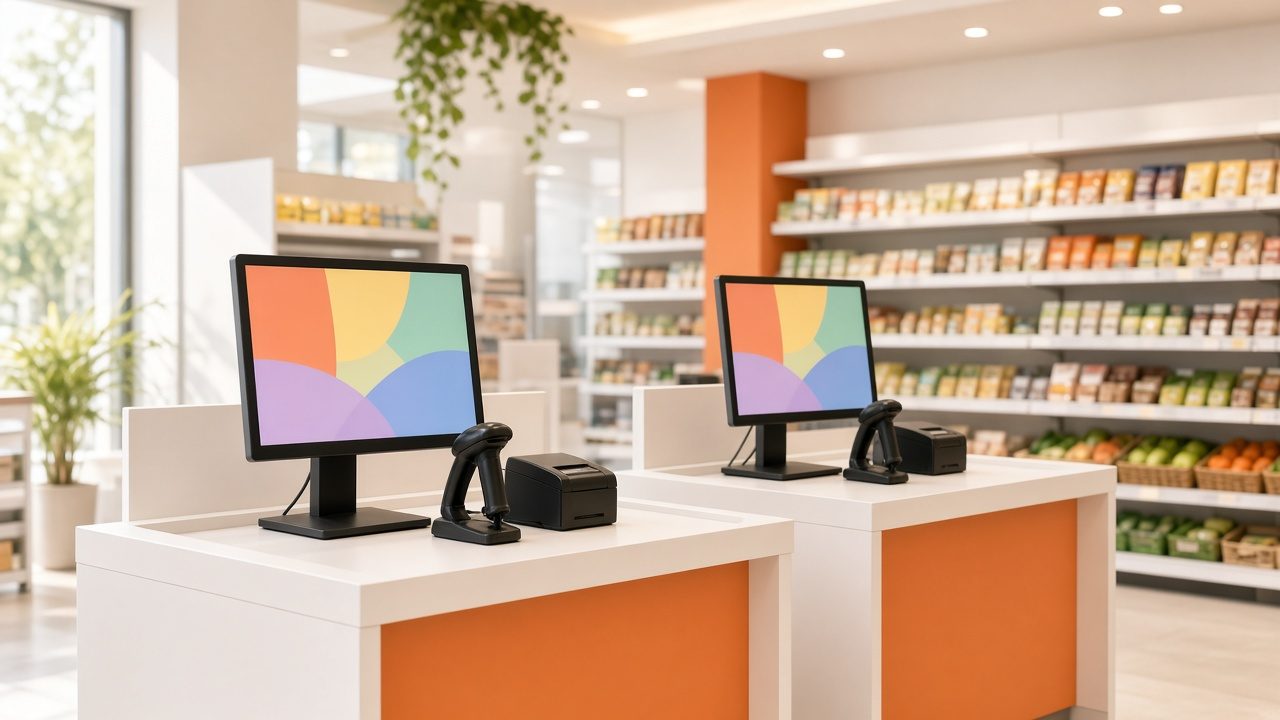
A sensible plan would look like this:
- Check whether the old PC can move to Windows 11. If it cannot, use it only for billing until it is replaced, and buy the new counter PC with Windows 11.
- Install the same billing software on both PCs and sign in with the same business account, so both counters share one item list and one stock figure.
- Give each cashier a separate login, so the day-end report shows who billed what.
- Connect a barcode scanner and receipt printer to each counter and test both on real products.
- Use the web app at home to check daily sales and low-stock alerts instead of calling the shop.
For more on running more than one till, read our guide to multi-counter billing software.
Common mistakes to avoid
- Installing on the cashier’s account with full admin rights. Anyone can then change settings or install unwanted programs.
- Skipping the printer test. Discovering a cut-off bill format on the first busy day wastes time and embarrasses staff in front of customers.
- Entering items without HSN codes or tax rates. Fixing tax on hundreds of items later is slow and error-prone.
- Running old and new software side by side for months. Double entry leads to stock that never matches.
- Ignoring Windows updates and antivirus on the PC that holds all your sales and customer balances.
Try Caddayn Biller on your Windows PC
Caddayn Biller brings GST billing, barcode billing, inventory with low-stock and reorder alerts, UPI, card and cash payments, customer and loyalty management, and multi-branch support together in one system, with a Windows app for the counter and a web app for the owner. There are also industry-specific versions for supermarkets, restaurants, pharmacies, textiles, hardware stores and more on our products page. To see whether it fits your shop, read Caddayn Biller for retail shops or go straight to the downloads page and install it on your counter PC.
Frequently asked questions
Can I still use billing software on Windows 10?
Many programs still install on Windows 10, but Microsoft ended regular Windows 10 support on 14 October 2025, so the PC no longer gets free security updates by default. Ask your software provider which Windows versions they support, and plan a move to Windows 11 where the hardware allows it.
Is desktop billing software better than a web app?
Neither is better for every shop. A desktop app suits a fixed counter with a printer, scanner and cash drawer, while a web app is handy for owners and staff who need access from anywhere. Software that offers both lets you use each where it fits.
What PC do I need for a billing counter?
Check the requirements your software provider recommends and test the installer on your own PC. In general, a PC that runs a supported Windows version smoothly, with enough free disk space, working USB ports for the printer and scanner and a stable internet connection, will serve a billing counter well.
How do I move my data from old billing software?
Export your item list, customer and supplier balances and closing stock from the old program, clean them in a spreadsheet, and import them into the new software. Pick a quiet day for the cutover and stop billing in the old program once the new one is live.
Do I need internet for Windows billing software?
It depends on the software. Some work fully offline, some need internet all the time, and hybrid systems keep the counter running and sync when the connection returns. Ask the provider what happens to billing during an internet cut before you decide.